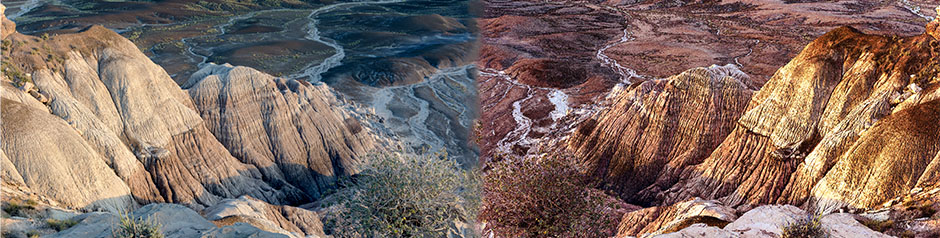
Baltimore Camera Club Monday Missive March 14, 2016

Quotes

Don’t ask yourself what the world needs – ask yourself what makes you come alive, and then go do it. Because what the world needs is people who have come alive.” – Harold Thurman Whitman

Wheresoever you go, go with all your heart.” – Confucius
 
The best way to predict your future is to create it.” – Anonymous

Links

Ethics of Wildlife Photography
Accidents Happen…Fortunately
Better Dog & Cat Pix
What Not to Do When Imaging Birds
Best Wedding Photography
Interesting Portrait Experiment
Reduce Noise in Photoshop
Noise Comparison of RAW and JPG
11 Women Photographers Who Shaped Photography


Glass blower.

Glass blower.

Tagged | Leave a comment

Photo Locations Maryland: Loch Raven Beach

To me, photography is an art of observation. It’s about finding something interesting in an ordinary place…. I’ve found it has little to do with the things you see and everything to do with the way you see them. — Elliott Erwitt

With this blog I am starting an occasional series of locations in Maryland that I go to to make images.

Loch Raven Reservoir is a drinking water source for Baltimore located north of the City in Baltimore County. You can canoe or kayak in the lake with a permit, but the craft can be used only on the lake to prevent introduction of invasive species like zebra mussels. David Simpson has a fantastic book on Loch Raven if you want to see what is possible from a small craft.  There are hiking trails like this one from Backpacker magazine, or these from a hiker but I am getting older and tend to forego the more physical opportunities. It is less than 100 yards from where you can park your car on Loch Raven Drive (at least on weekdays) to walk down to the beach. Unless the weather has been especially dry, it is often somewhat muddy so be prepared.  During weekends, the section of lake opposite the beach is closed to vehicular traffic but is open to pedestrians and non-motorized vehicles. You can park on weekends at Morgan Mill Road, about 0.4 miles away as described below.

Heavy traffic heads south on Dulaney Valley Road in the mornings to access interstate highways and north in the afternoon as folks head home.

Ducks and geese are common, with gulls frequenting a little island a few hundred yards out in the lake. The geese are relatively habituated to human contact and you can fairly close.  Early morning light is at your back as you face the light, and the sun sets behind the island.

The lake is not about awesome scenery, but more about quiet light and serenity.

Location

N 39.44983°
W 076.55119°
Elevation 276 feet

Directions

Take Dulaney Valley Rd turn north from Towson, MD. At the fork at the north end of the bridge stay right on Dulaney Valley Rd (don’t take Jarretsville Pike). At the next fork (Pearce’s Landing Restaurant) bear right on to Loch Raven Drive. Several miles further there will be an unmarked intersection on the left that is Morgan Mill Rd. You will also see a sign on the right saying that vehicles cannot pass, between 10 am and 5 pm on weekends and a yellow gate that is closed on weekends.  On the left there is also a little roofed bulletin board with various notifications. On weekends, you can park on Morgan Mill Rd immediately on the left.  On week days, you can continue another 0.4 miles and park on the road right opposite the beach.  Just before the beach on the right you will see a sign on the right that says “NO” and lists prohibited activities.

An island off Loch Raven Beach

An island off Loch Raven Beach

Canada goose

Canada goose

LochRavenComposite_D757269

A composite image of the island described in the text with light on the trees in the surrounding watershed.

Tagged , | Leave a comment

Baltimore Camera Club Monday Missive March 7, 2016

Quotes
“Your photography is a record of your living, for anyone who really sees.” – Paul Strand

You already have permission
Just saying.
You have permission to create, to speak up, and stand up.
You have permission to be generous, to fail, and to be vulnerable.
You have permission to own your words, to matter and to help.
No need to wait.
— Seth Godin 3/1/13

Links

Macro Backgrounds
Shooting In Low Light
Portfolios of Blind Photographers – Pete Eckert’s story is particularly poignant and inspiring.
From Harry: Dreamscape
Layer Masks
Making Prints in the Digital Age
Better Editing of Your BW Images
25 Great Unknown Photographers
Best Advanced Composition Explanation I Have Ever Seen

Boats in the morning.

This was taken in Nova Scotia. The area was a pleasant mix of countryside and small towns.

Tagged | Leave a comment

Baltimore Camera Club Monday Missive Feb. 29, 2016

Quotes

“My best work is often almost unconscious and occurs ahead of my ability to understand it.” – Sam Abell

“All the best ideas come out of the process; they come out of the work itself.” – Chuck Close

“If I already have a vision, my work is almost done. The rest is a technical problem.” – Hiroshi Sugimoto

“Sometimes you don’t know why you’re doing something. You’re intuitively following, to see where it leads.” – Edward Burtynsky

Links

Birds In Flight

The Workshop Experience

Great Street Photos

Don’t Be Intimidated

Understanding Histograms

Texture Photography

Healing vs Cloning

Interesting Historical Perspective on Ansel

Think Before You Shoot
FrostedLeaf_D75_6899

Tagged | Leave a comment

Baltimore Camera Club Monday Missive February 22, 2016

Quotes

“Success to me is being a good person, treating people well.” – David LaChapelle

“It’s more important to click with people than to click the shutter.” – Alfred Eisenstaedt

Friendships are made before photographs are taken.  — From a video by Joey L on the Metawi tribe in Indonesia.

Links

Squirrels

Flowers

More Flowers

Tips

Stunning Monochrome Images

Exceptional Black & White Portraits

Beating Creative Block

Adding Water Ripples in Photoshop
LochRavenComposite_D757269

Tagged , | 2 Comments

Baltimore Camera Club Monday Missive Feb. 15, 2016

Quotes

I do have some principles that I follow:
• I must create from my own vision.
• To create my best work, I must create for myself.
• I never ask others about my work.
• I create because I love to; not to win contests, sell art or to win praise.
• I will keep things simple: my equipment, my processes and my images.
— Cole Thompson

“I want to make photographs whose very ambiguity provokes thought, rather than cuts it off prematurely. I want to make pictures that work on a more mysterious level, that approach the truth by a more circuitous route.” – John Pfahl

Links

Conservation photography in the Everglades; includes a really good TED talk

From Harry: 5 minute history of photography

More than you want to know about depth of field, including effect of sensor size

40 Good Tips

10 Camera Settings You Should Master

From Harry: Bresson

20 Outdoor Photographers to Follow on Instagram

60 Minutes Links to Danny Clinch from Carl Lancaster

Anderson Cooper Interview

Clinch’s website

NY Post story

TinderbellCPYRT

Tagged | Leave a comment

More Photography at the BMA

An artist is not paid for his labor but for his vision.” – James Whistler

The BMA currently has on display more photographs than I have ever seen at one time, all under the heading of “New Arrivals.”  There are three themed exhibits:

  1. The O’Neil collection from Baltimore collectors Tom and Nancy O’Neil.  Approximately 20 images with broad themes that embody the interactions of humans and the environment (e.g., Misrach, Schutmaat, Kirkeby, Tice, Burtynsky), and portraits that reveal people’s struggles and achievement (Chao, Bey, Anderson & Low), and a few that don’t really fit in either category.  On exhibit until March 27, 2016.
  2. Late 20th Century Photographs from Russia and Belarus.
  3. Several other New Arrivals exhibits include single prints from Stephen Shore and William Eggleston, three large prints from Burtynsky, four images from Dorothea Lange’s FSA work in Oregon, and two small works by Edward Stieglitz.

The O’Neil Collection

The O’Neil Collection exhibit in the contemporary wing is interesting for the breadth of the collection.  There seemed to me be three sub-themes:

  • The first, as described above of human and environment interactions, included Misrach’s Holy Rosary Cemetery, Schutmaat’s Abandoned Homestead, Hatakeyama’s Blast (stop action limestone blast), Kirekby’s To and From (transmission lines reminiscent of Callahan’s minimalist work), Tice’s Water Tower and White Castle, probably Matthew Pillsbury’s Jane’s Carousel, Ulrich’s Kenosha Wisconsin big box store and Burtynsky’s Oxford Tire Pile could have been grouped together.  All have representations of ecological consequences of human activities on the environment. This would certainly be more a grouping of theme and intent rather style or technique, because both varied widely. The contrast for example of Kireby’s almost delicate image of transmission lines with Burtynsky’s massive tire pile filled with detail is an extreme contrast. Hatekeyama’s Blast ties the environmental destruction of exploding limestone with implied construction of roads and buildings using the limestone.  Tice’s contemporary architecture combines well with Ulrich’s image of the interior of the big and the implications for consumption, waste and banal architecture.
  • The second grouping are the portraits of which two really stood out to me:  Dey’s large format portrait of Shalanta and Chao’s of a Buddhist monk Taken with a large format camera, Shalanta was accompanied by statement from the subject. The image truly reflected her positive approach to life. Schutmaat’s portrait of a Wyoming man also works well with this group.  Anderson and Low had a diptych of a star Naval Academy lacrosse star in protective gear and in dress uniform, connecting or contrasting the athlete and the warrior.
  • The third group seemed to be more of technique and and style than of theme, without any real connection other than disparate approaches.  Abelardo Morell converted a room into a camera obscura to capture street scenes. The image was displayed inverted as it was taken, and with the softness and lack of sharpness resulting from imaging without a lens, seemed surrealistic. Thomas Kellner took individual 35 mm color negatives of sections of the Lincoln Memorial and then assembled the negative strips to create a fragmented, disjointed image of the memorial; very interesting approach of dis-assembly and re-assembly. Welling’s abstract of draped velvet  and Lyons use of the flag “After 9/11” were interesting images more as an examples of contemporary work than of any coherent theme.

Late 20th Century Photographs from Russia and Belarus

Approximately 22 photographs including photographs from Lithuania and Ukraine as well Russia and Belarus from 1959-2000. In general, the images were not exceptional except for being images of a time and place in the Soviet Union where things were controlled by the State and these were unofficial pictures. I thought the two images by Galina Moskaleva were the best of the group, although extremely different.  The first was from a series of young people who had been exposed to radiation and had to have their thyroid removed.  The second was of two children repeated and colored.  I didn’t understand the curator’s placement of these images by the same photographer, separated by a grouping of four images by a different photographer.  It would have been easier to compare the evolution of Moskaleva’s work if they were adjacent.

Other New Arrivals

These were scattered though the museum.  The most arresting were three large prints by Burtynsky (Silver Lake Operations, Rock of Ages and Shipbreaking).  The two by Shore (Holden St., North Adams, MA) and Eggleston (Untitled, from Troubled Waters) were also a well-considered comparison of mid-20th century urban scenes transformed by light. The four small images by Dorothea Lange, taken during her time with the Farm Security Administration were all of dwellings during the depression in Oregon; one of an exterior and three interior, and provided some interesting insight into life at that time.  Finally two small images by Edward Stieglitz; one of his wife George O’Keefe and of another artist, Marsden Hartley.

If you are interested in photography these current exhibits at the BMA shouldn’t be missed.


Tagged | Leave a comment

Baltimore Camera Club Monday Missive Quotes and Links Feb. 8, 2016

Quotes

“I fell in love with the process of taking pictures, with wandering around finding things. To me it feels like a kind of performance. The picture is a document of that performance.” – Alec Soth

“What makes photography a strange invention is that its primary raw materials are light and time.” – John Berger

“It can be a trap of the photographer to think that his or her best pictures were the ones that were hardest to get.” – Timothy Allen

Links
 
Wildlife From Your Car

Using Gradients in Portraits

Developing Your Own Style

Ansel

Shooting Action in Low Light

Best Explanation of Blend-If Sliders I Have Ever Seen

Nova Scotia, Canada

Mary Ann Falls, Cape Breton Highlands, Nova Scotia, Canada

Tagged | Leave a comment

Baltimore Camera Club Monday Missive February 1, 2016

Quotes

“The great geniuses are those who have kept their childlike spirit and have added to it breadth of vision and experience.” – Alfred Stieglitz

“If I have any ‘message’ worth giving to a beginner it is that there are no short cuts in photography.” – Edward Weston

“Reaching a ‘creative’ state of mind thru positive action is considered preferable to waiting for ‘inspiration’.” – Minor White

Links

Curves

Beginner Friendly Photoshop Tutorials

What Makes A Lasting Image – Sam Abel – This is 1 hour 50 minutes

DIY Lighting Projects

Zion

Wedding Composites

Horizontal AND Vertical
———————————————————————————

Please see our seminar Facebook event  https://www.facebook.com/events/1548390072152751/  and share it with your friends.  On the right side, just under the header where is says “Invite.”  Just click and a list of your friends will drop down. Click on those you think might be interested or on all of them and and ask them to spread the word.
——————————————————————————————————————–
Tagged , , , | Leave a comment

Seth Godin: Unconscious Consumption

Usually I use a quote to open a topic or a general thought for an issue or an image.  This excerpt of most of Seth Godin’s blog of Nov. 27, 2015 is the subject.  I post it here to return to on an annual basis because it is comforting to know that others also recognize the absurdities in our current cultural norms. Occasionally feeling as if I might be the only one who finds it totally absurd that people would literally trample each other to save 30% on something they really didn’t need is replaced by a recognition that at least a few people feel the same.  What was at one time a act of love or appreciation, or a sharing of happiness in faith, has become a social obligation, even worse, it has become a competition to outdo last year or your neighbor.

This seems to be part of a larger cultural split. A few companies and people are moving to a more generous norm:  sustainable production and living, tiny houses, green business, and treating employees fairly, while the majority, without shame or concern, seem to recognize nothing but increasing shareholder value (or their own material possessions) regardless of the impact on individuals and the community in which they reside (or their own finances), and often simply accepting that it means their lives will not improve no matter how hard they work.  It seems to me that our society can find a middle ground where profit is well-served, but the contributions and costs to all are recognized.

Seth Godin
Unconscious consumption
Black Friday, of course, is a con.

But it’s also a symptom of a terrible trap we’ve set for ourselves.

Now, consider the mall. The mall, today.

For the three billion people on Earth who have never experienced air conditioning, window displays and the extraordinary safety and wealth that the mall represents, a trip to the mall is mindblowing. For the typical consumer, egged on by a media frenzy and harried by a completely invented agenda, today is nothing but a hassle.

All that time, all that money, all those emotions spent for not one good reason.

It’s more about what you didn’t get on sale, or how many more people you need to “cross off” or just how much shiny but useless stuff you can grab faster than the next person. A reversal of 100,000 years of not enough to a brief few decades of more, more, more.

Don’t let someone else scam you into being unhappy.

Tagged | Leave a comment

Tiny Dancer

My daughter is quiet beside me in the front seat, until at last she sighs and says, with a child’s poetic logic, “This reminds of the place I always like to think about.” — Barbara Kingsolver

Doing more composites.  Will probably update this blog rather than creating a new one with more from this series from the Akimbo Teaser dance event in Station North on August 28, 2015.  Next Akimbo event is Sept. 12, 1:00 – 6:00.

DanceInADropOfDew2Shadow

The standing committee stands in judgement.

The standing committee stands in judgement.


Judgement added on Sept. 6, 2015

Defense
Defense added Sept. 9, 2015

Tagged , , | Leave a comment

Sustainafest

“Respond to every call that excites your spirit.” ? Rumi

Sustainafest 2015

For details go to the Sustainafest website.

Saturday, Sept. 12, 2015, starting at 1:00, films at 6:30.

Sustainafest Mission: To educate and engage people of all ages and interests to take action in their everyday lives to strengthen our community, improve our environment, and support our local economy.  [And have good time doing it!]

You and all of family and friends are invited to be a part of this year’s event. SustainaFest is a wonderful Maryland non-profit that is bringing sustainability education and action into schools in our area and teaching the general public about living more sustainably.  Their Student Sustainability Lab program, whose programming includes having middle school students build sustainable tiny houses, has garnered lots of attention of late and is quickly expanding into both public and private schools.

This year’s festival will take place on September 12th at Indian Creek School in Crownsville, MD. The day will feature great musicians, local food and drink, sustainability-themed exhibitors and vendors, student-built tiny houses, world-class independent films from Telluride Mountainfilm, and much more.  This is the 3rd year of the festival and it just keeps getting better; it’s not to be missed.

The attached flyer provides more information.  Tickets can be purchased here. Early bird pricing ends on Aug. 31st so everyone should move quickly to ensure a ticket and get the best price!
If you have any questions, please don’t hesitate to contact me or SustainaFest Program Coordinator, Josh Bennett (443.784.7088).
Tagged | Leave a comment

Bayscaping (Butterfly Garden) Redux

To me, photography is an art of observation. It’s about finding something interesting in an ordinary place…. I’ve found it has little to do with the things you see and everything to do with the way you see them.  — Elliott Erwitt

I first talked about Bayscaping — landscaping for habitat using native species — in April 2013, with an update in August of that year.  Well the garden has come along with fairly robust stands of Joe Pye Weed, Swamp Milkweed and butterfly weed and others which should attract numerous insects.  [Last year I mostly got a huge crop of aphids.]

Two years ago I saw 8 monarch caterpillars, but last year — nothing; very disappointing, but there was national concern about a huge kill of monarchs due to bad weather at the wrong time.  Hopefully this year will be better.  So far just some red and black milkweed bugs, that were not photographed.

Because I enjoy macro photography, my original intent in starting the garden was two-fold:  Provide a convenient (right outside my backdoor) location for macro photography of flowers and bugs and eventually to teach a macro class out of my home studio. So to start using it productively, I plan to update this blog post approximately weekly with at least 1 image per week (yeah, I know, not terribly ambitious, but hey, its summer and I’m retired).

May 29, 2015, mid-afternoon

ButterflyWeed_DSC4817

D200, 55 mm micro-Nikkor with 1.4x Tamron Teleconverter, f/5.6, 1/640 sec, ISO400. Butterfly weed.

MilkweedLeafBeetle_DSC4824

Milkweed Leaf Beetle, D200, 55 micro-Nikkor w/1.4X Tamron telextender, f/8, 1/125, ISO 400

Pretty warm, didn’t see too much, mostly those gold-bodied flies, so I shot some butterfly weed buds. Went back out an hour later and found this gaudy milkweed leaf beetle.


June 1, 2015, mid-afternoon

Experimented with a used 55 mm micro-Nikkor I bought earlier this year with a 52.5 mm Nikon extension tube (PN-11) that may have been made specifically to achieve 1:1 with this lens.  The tubes have their own foot, increasing the stability of the camera/lens on the tripod.

June 10, 2015D800E, ISO 400, f/16, 55 mm micro with 52.5 extension tubes.

Butterflyweed has opened.

ButterflyWeed_D8E1343

55 mm micro-Nikkor with 14 mm extension tube on D800E


Tagged , , , , , , , | Leave a comment

Delaware Horseshoe Crabs

While my interest in natural history has added very little to my sum of achievement, it has added immeasurably to my sum of enjoyment in life. — Theodore Roosevelt

HorseshoeCrabEggs_D8E0639

Horseshoe crab eggs are a critical food source for migrating birds.

Every year a major ecological happening occurs along the shores of the Delaware Bay in Delaware and New Jersey:  Thousands of horseshoe crabs gather on the shores to breed.  Well, OK… but I really don’t care about a bunch of ugly, horny bug-like things that look like they crawled out from under something.  What makes this ecologically important? The eggs they lay are food for thousands of migrating birds, many of them major long-distance travelers that travel from South America to the Arctic.  Without this food source along their migration route, thousands may not make it to nesting areas.  Populations of horseshoe crabs, and therefore their eggs, have been decreasing due to habitat destruction and the capture of tons of the crabs (which aren’t really crabs, but are more closely related to spiders and scorpions) for bait by crabbers, who crunch up the horseshoe crabs to capture the much more lucrative blue crabs; they are also used as fertilizer.

The peak of spawning on the Atlantic coast occurs in Delaware Bay where thousands of crabs arrive on the sandy beaches in May and June. Delaware Bay provides an excellent spawning area for crabs because the sandy beaches are protected from harsh wave action. HorseshoeCrabs_D8E0491The beaches’ sand and pebble mixture is perfect for incubating horseshoe crab eggs. Crabs arrive on the spawning beaches during the high tides of full and new moons when the water rises highest on the beach.

HorseshoeCrabs_D8E0593I had time to check out 3 beaches:

– Kitts Hummock (3073 Kitts Hummock Rd, Dover, DE 19901; 39.102715, -75.402319).
– Pickering Beach (Pickering Beach in Delaware often has the highest densities of horseshoe crabs. In 2007 researchers counted a whopping 27 horseshoe crabs per square meter at Pickering Beach during the peak of spawning season (May-June) at high tide.  The beach is off Route 9 on conveniently named Pickering Beach Rd (Route 349). North of Kitts Hummock. (Clean Porta-Johns available 2015).
– Slaughter Beach, which is well-marked on the map and the furthest south of these beaches (real bathrooms available).

Port Mahon, east of Dover, may have been the best bet for birds, but we didn’t make it on this trip.  While the crabs are best closest to high tide, the birds tend to get better as the tide goes out and the eggs are exposed.

The long pointy tail is NOT a stinger and not dangerous.  It helps the clumsy crabs turn right side up when they are inverted in the waves.  The crabs are completely harmless and eat worms and shellfish they find along the bottom of the Bay.

A two hour trip from Baltimore, in season this is a great day trip for nature photographers and families that want to explore nature.

Update 6/10/15

Latest issue of the Nature Conservancy’s magazine says that rufa subspecies of the red knot, a bird that depends on  horseshoe crab eggs to refuel for the 18,000 mile round trip from Tierra del Fuego in summer to the high Acrtic is now listed as a threatened species.  I noticed this year that there were mostly gulls feeding on the eggs — in a past visit there was far more diversity at the feeding frenzy.

Tagged , | Leave a comment

Split-toning

“Most of my photos are grounded in people, I look for the unguarded moment, the essential soul peeking out, experience etched on a persons face.” — Steve McCurry

Gina DeLucca at Blues Jam.

It has been a long-time since my last entry. I have been busy and doing a lot of photography but either I thought it would not have general interest or wasn’t quite ready to talk about it.  I think (hope) that split-toning black and white (monochrome) photos may be of at least some general interest.

Split-toning adds different color hues to the highlights and shadows.  Typically the highlights are warmed (reds and yellows) and the shadows are cooled (blue and cyan).  This was commonly done in the “old days” of wet chemistry using different chemicals to add the tones. The way to do split-toning is more obvious in Lightroom which has a split-toning panel in the Develop module than in PS.  However, in Photoshop you can easily use the Color Balance adjustment layer to achieve a split-tone image.

How much you tone and what colors you use is strictly a personal artistic judgement and will vary from image to image.  The starting values I used in Color Balance for the image above are:

Highlights:  +30 Red; -75 Yellow
Shadows:  +10 Red; +11 Blue
Midtones: -40 Cyan

Highlights, shadows and midtones are picked from a drop down menu in the Color Balance dialog box.

For the image above I also used the “increased contrast” curve in the Curves adjustment layer.

BluesJam_D8E9208BillBWI make the best possible black white image to start.  Many folks like to use the NIK Silvereffects presets as a starting point.  I checked out the presets and thought NOIR 1 wasn’t bad for the image above, but preferred what I could do directly in the BW adjustment layer. Final tweaks, a little sharpening and you are good to go!

The second image was processed similarly, but ended up with

Highlights:  +32; Red; -72 Yellow
Shadows:  +14 Red; +9 Blue
Midtones: -40 Cyan

I also vignetted (darkened) the edges significantly using a separate layer with blending  mode set to overlay and painting with black.

There are at least two additional ways to approach split-toning.  In more recent versions of Photoshop you can apply a camera raw filter and even do it as a smart filter so you can go back and modify the tones.  Split-toning is the fifth option from the left at the top right of the camera raw dialog.

A third way is to select highlights or shadows in Color Range.  An advantage to using color range is that you broaden or narrow the highlights or shadows using the fuzziness and range sliders.  This will create a selection when you select HSL or color balance adjustment layers.

Split-toning can be used with color or monochrome to further separate and accent highlights and shadows.  Go play!

Tagged | 1 Comment